How to Remove Laptop Malware Without Losing Files
September 27, 2026
Repair Versus Replace a Damaged Laptop Today
September 29, 2026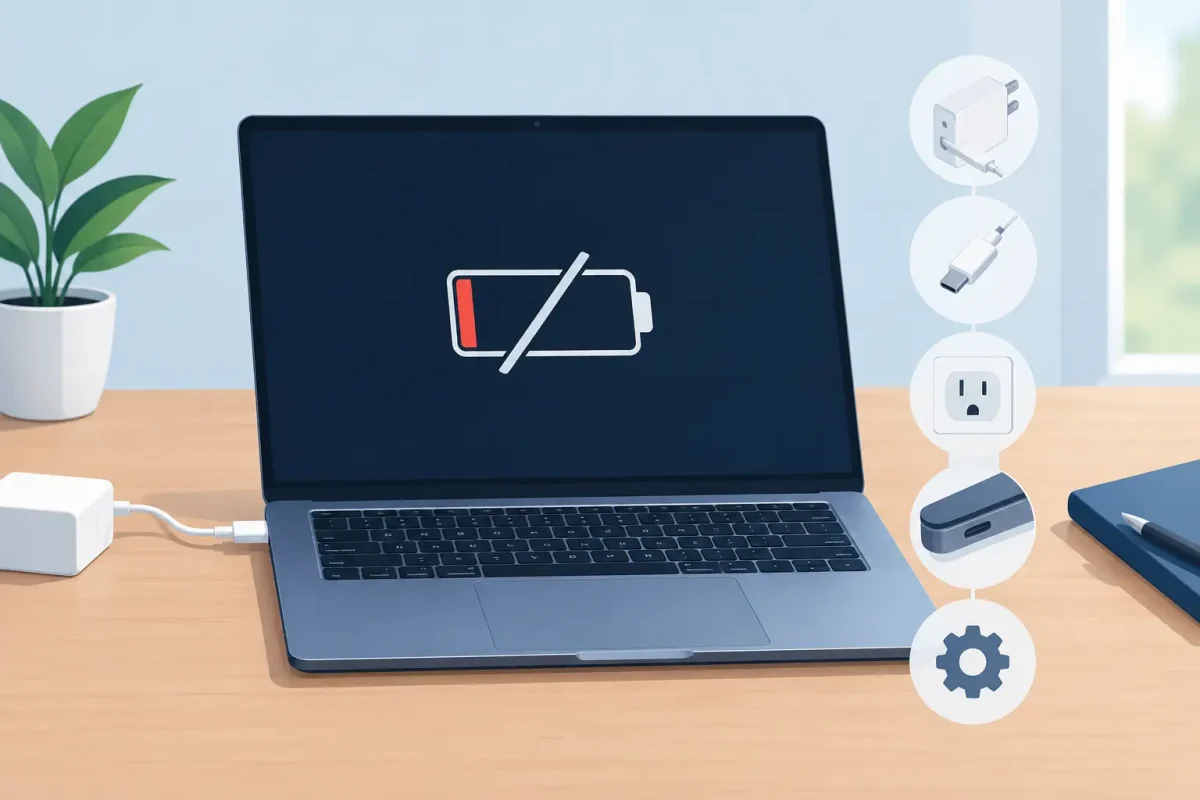
A laptop that shows 2% battery, says plugged in, then dies anyway can stop work, school, and travel plans fast. If you are searching why laptop will not charge, the cause may be as simple as a worn cable or as involved as a damaged charging port, failing battery, or motherboard issue. The good news is that a few safe checks can narrow it down before you spend money on the wrong fix.
Why Your Laptop Will Not Charge
Charging problems usually fall into one of four areas: the wall outlet and power adapter, the cable and connector, the battery, or the laptop’s internal charging system. What you see on screen matters. A laptop that does not recognize the charger has a different likely cause than one that recognizes it but stays at the same battery percentage.
Start by looking for the obvious signs. Is the charging light on? Does the battery icon change when you connect the adapter? Does the charger get unusually hot, make a buzzing sound, or have a bent tip? Small details help identify whether the problem is outside the laptop or inside it.
The outlet, charger, or cable is failing
Try a different wall outlet first. Power strips, surge protectors, and loose outlet connections can fail without making it obvious. Plug the laptop charger directly into a known working wall outlet, then check whether the charging indicator appears.
Next, inspect the adapter and cable from end to end. Look for fraying, split insulation, exposed wire, scorch marks, or a connector that feels loose. A damaged charger can provide inconsistent power, which may make the laptop charge slowly, connect and disconnect repeatedly, or not charge at all.
If your laptop uses USB-C, confirm that the charger supplies enough wattage. A phone charger may fit the port but may not deliver enough power for a laptop, especially while the laptop is running. Some USB-C laptops also charge through only one specific port, so try the approved charging port and a compatible, properly rated adapter.
The charging port is loose or damaged
A port that only works when you hold the cable at a certain angle is not something to ignore. Dirt, lint, bent internal pins, or physical wear can prevent a proper connection. For laptops with barrel-style charging plugs, repeated pulling on the cable can loosen the internal jack. USB-C ports can also wear over time, particularly when a cable is forced or frequently bumped.
Do not use metal tools, pins, or excessive force to clean a charging port. You could bend contacts or create a short. If you can clearly see loose debris, use a gentle burst of compressed air while the laptop is powered off and unplugged. If the port still feels loose, the laptop needs a professional inspection. Continuing to wiggle a cable into position can turn a smaller repair into a more expensive board-level issue.
The battery has reached the end of its life
Laptop batteries do not last forever. Heat, age, frequent deep discharges, and heavy daily use gradually reduce how much power a battery can hold. A worn battery may charge very slowly, fall from 40% to 5% without warning, or show a full charge but shut down as soon as the charger is removed.
Many Windows laptops provide battery health information through manufacturer tools or a battery report. Mac laptops can show battery condition in system settings. A service warning, such as Replace Soon or Service Recommended, is a strong sign that the battery may be the problem.
A battery replacement is often more practical than replacing an otherwise dependable laptop. It depends on the model, age, repair cost, and whether other issues are present. On some laptops, the battery is accessible from the bottom cover. On thinner models, Macs, and many newer PCs, the repair requires careful disassembly and should be handled by a trained technician.
Software or power settings are interfering
Not every no-charge issue is hardware. A frozen operating system, outdated battery driver, or power-management setting can prevent the laptop from recognizing a healthy charger. Restart the computer with the charger connected. If it has enough remaining power to boot, install pending operating system updates and check the manufacturer’s support software for BIOS, firmware, and power-management updates.
For Windows laptops, shutting down completely and restarting can reset a temporary driver problem. You can also check Device Manager for battery-related warnings. On a Mac, a restart and software update may resolve a charging status error.
Be careful with online instructions that recommend deleting drivers, resetting firmware, or opening the laptop. These steps can help in specific cases, but they can also create a new problem if performed incorrectly. If the laptop contains important work files, school projects, or family photos, prioritize protecting your data before attempting advanced troubleshooting.
Safe Checks Before You Book a Laptop Charging Repair
You can usually perform these checks without opening the laptop:
- Test the charger in a different working outlet, without a power strip.
- Inspect the adapter, cable, and plug for damage, heat, or looseness.
- Try a known-good compatible charger with the correct wattage.
- Restart the laptop while it is connected to power.
- Check whether the charging light or battery icon changes when the cable moves.
- Disconnect nonessential USB accessories that may be drawing power.
If the laptop starts charging with another compatible charger, replace the original adapter. If it only charges when the cable is held in one position, stop relying on that temporary workaround and have the port checked. If it runs only while plugged in, the battery is a likely suspect, though a technician should confirm the diagnosis before replacing parts.
When a Laptop Will Not Charge, Do Not Ignore These Warning Signs
Stop using the laptop and charger if you notice a burning smell, smoke, crackling, melted plastic, or extreme heat. Unplug it from the wall if it is safe to do so. Do not attempt to recharge a battery that is swollen or pushing up the keyboard, trackpad, or bottom cover. Swollen lithium-ion batteries can be dangerous and require proper handling.
Liquid exposure also changes the situation. Even if a laptop begins charging after a spill, corrosion can continue inside and cause later failures. Turn it off, disconnect the charger, and avoid trying to power it back on repeatedly. Fast diagnostics can make a real difference after water damage.
A laptop that charges intermittently after a drop may have more than a bad port. The impact can damage the battery connector, charging circuit, or motherboard. This is why a clear diagnosis matters. Replacing a battery will not solve a broken charging port, and buying a new charger will not fix an internal power-management failure.
Get a Clear Answer Before You Replace Your Laptop
A dead battery indicator does not automatically mean your laptop is finished. Many charging issues are repairable, and a proper diagnostic can identify whether you need an adapter, charging-port repair, battery replacement, or deeper board-level service. Device Doctor’s certified technicians can inspect common laptop and Mac charging problems without the confusing jargon or hidden-fee surprises.
For Charlotte-area students, professionals, and families, bringing in a laptop early can help prevent a small connection issue from becoming a total no-power problem. Bring the charger with you, describe when the issue started, and mention whether the laptop was dropped, overheated, or exposed to liquid. That information helps the technician get to the right repair faster.
Your laptop should not have to live on a cable held at just the right angle. A quick, professional diagnosis can restore dependable charging and help you get back to work, class, and everything else waiting on your screen.