
Selling Old Electronics Guide for More Cash
September 9, 2026
OLED Versus LCD Phone Screens: Which Fits You?
September 11, 2026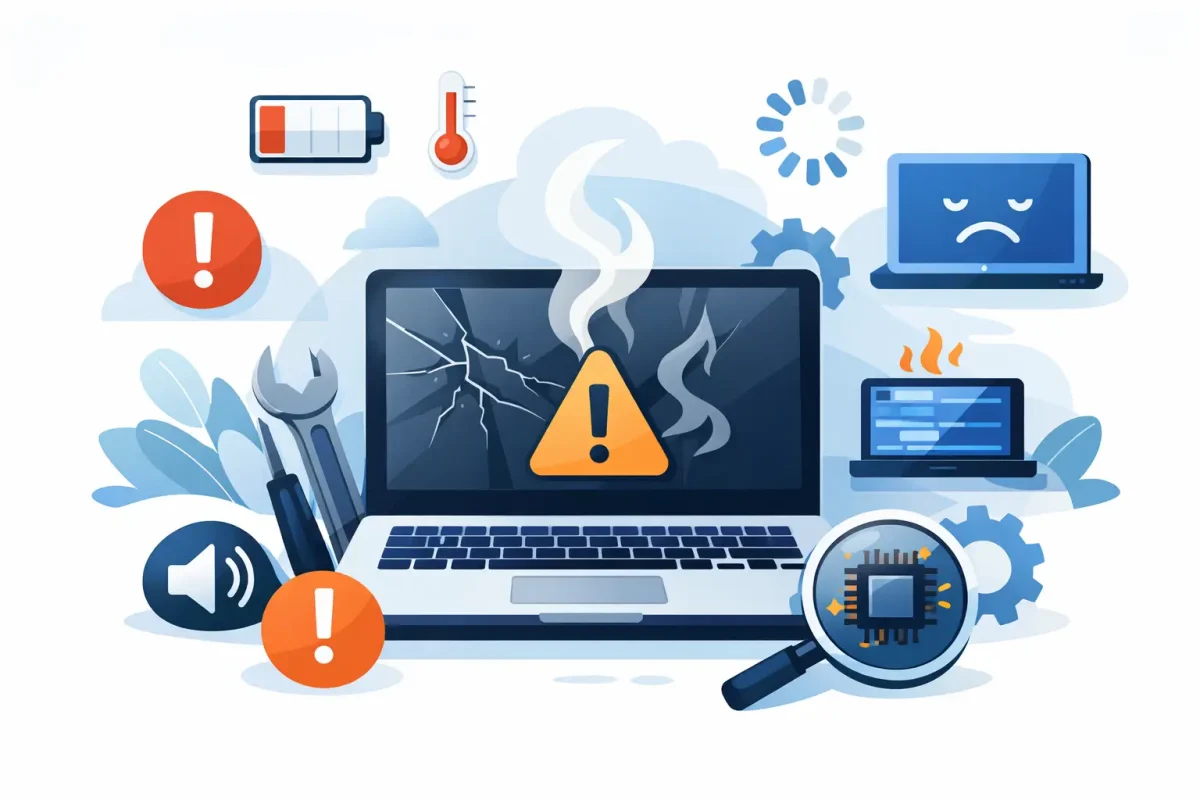
A laptop rarely quits without warning. It starts taking longer to boot before class, losing power during a meeting, running hot on the couch, or refusing to charge unless the cable sits just right. Knowing the laptop repair signs to watch for can help you act before a minor problem turns into lost files, missed work, or a device that will not turn on at all.
Some issues are software-related and can be fixed with an update, cleanup, or settings adjustment. Others point to worn hardware that needs professional attention. The difference matters, especially when you depend on your laptop for work, school, gaming, banking, and staying connected.
1. Your Laptop Is Running Much Slower Than Usual
A little slowdown after years of use is normal. A laptop that suddenly takes several minutes to start, freezes while opening simple programs, or lags during everyday browsing deserves a closer look.
The cause may be limited storage, too many startup apps, malware, or an outdated operating system. It can also be a failing hard drive, damaged memory, or overheating that forces the processor to slow itself down. If restarting helps only briefly, or you hear clicking from an older hard drive, do not wait for the problem to get worse.
A technician can diagnose whether the answer is software cleanup, storage replacement, memory service, or a more involved repair. Back up important files as soon as possible if the slowdown comes with crashes or error messages.
2. The Battery Drains Fast or Will Not Hold a Charge
If your laptop used to last through a workday or class and now needs an outlet after an hour, the battery may be reaching the end of its useful life. Battery wear is common, particularly on laptops that are several years old or are regularly used while plugged in.
Watch for a battery percentage that drops suddenly, a computer that shuts down before it reaches zero percent, or a battery that takes an unusually long time to charge. A swollen battery is more urgent. Signs can include a lifting trackpad, a raised keyboard, a case that will not sit flat, or gaps along the bottom panel. Stop using the laptop and have it inspected right away.
Battery replacement can often restore portability for far less than replacing an otherwise dependable computer.
3. Your Laptop Only Charges at a Certain Angle
A charging cable that has to be held, bent, or positioned carefully is not something to ignore. The problem may be a damaged cable or power adapter, but it can also be lint in the charging port, a loose port, or internal charging-board damage.
Try another compatible charger if one is available. If the same issue continues, avoid forcing the plug or repeatedly wiggling it. That can cause more damage to the port and leave your laptop unable to charge at all. A repair diagnosis can identify the failed part instead of replacing accessories that were never the problem.
4. The Screen Flickers, Has Lines, or Stays Black
Screen issues range from inconvenient to impossible to work around. Flickering, colored lines, dark patches, dead pixels, random blackouts, or a display that works only when the lid is held a certain way can point to a failing LCD, damaged display cable, graphics issue, or hinge problem.
First, check whether the laptop works with an external monitor. If the external display looks normal, the issue is often in the laptop screen assembly rather than the operating system. If both displays show the same distortion, the graphics hardware or software may be involved.
A cracked screen is obvious, but internal damage is not always visible. Avoid pressing on the panel or closing the lid with items resting on the keyboard. Screen replacement may be the practical fix when the laptop is otherwise performing well.
5. It Overheats, Gets Loud, or Shuts Down
Your laptop’s fan will spin during demanding work, video calls, gaming, or charging. Constant fan noise during simple tasks is different. So is a laptop that feels unusually hot, blows hot air continuously, or shuts down without warning.
Dust buildup, blocked vents, aging thermal material, a failing fan, or background programs can all contribute. Using a laptop on bedding, carpet, or your lap for long periods can block airflow and trap heat. Move it to a hard, flat surface and make sure the vents are clear.
If overheating continues, stop treating it as a nuisance. Heat can shorten the life of batteries, storage drives, and internal components. A proper inspection can determine whether the laptop needs cleaning, fan repair, software troubleshooting, or additional hardware service.
6. The Keyboard or Trackpad Stops Responding
A few sticky keys after a spill may seem manageable until important keys stop working or type on their own. Unresponsive keys, repeated characters, a trackpad that jumps around, or a trackpad that will not click can come from liquid exposure, debris, wear, software conflicts, or battery swelling beneath the palm rest.
An external keyboard or mouse can be a temporary workaround, but it does not solve a physical problem inside the laptop. If liquid was involved, power the device down, disconnect the charger, and avoid trying to dry it with heat. Fast diagnostics matter because moisture can corrode components after the visible spill is gone.
7. Wi-Fi, Bluetooth, or USB Ports Keep Disconnecting
A laptop that drops Wi-Fi during meetings or disconnects USB devices at random can make daily tasks frustrating. Before assuming the laptop is at fault, test another network, cable, device, or port. Router problems and outdated drivers can cause similar symptoms.
When the problem follows the laptop everywhere, it may indicate a damaged port, worn internal cable, failing wireless card, or motherboard issue. This is especially likely after a drop, power surge, or liquid exposure. Repeatedly unplugging and reconnecting accessories may make a loose port worse, so it is worth having the device checked before a critical deadline.
8. You See Pop-Ups, Crashes, or Strange Error Messages
Not every laptop repair involves a physical part. Frequent pop-ups, browser redirects, unexplained programs, repeated blue-screen errors, or apps that crash every day can signal malware, corrupted files, driver conflicts, or an operating system problem.
Start by saving your documents and photos. Avoid entering passwords or financial information if the laptop is behaving suspiciously. In some cases, professional software troubleshooting can remove the problem and preserve your data. In others, a failing storage drive may be causing corrupted files and needs to be replaced.
The key is not to assume every error means the laptop is finished. A clear diagnosis can separate a repairable software issue from a hardware failure.
9. The Case, Hinges, or Ports Are Physically Damaged
A loose hinge, cracked housing, bent charging port, or bottom case that will not close properly can affect more than appearance. Damaged hinges can pull on display cables. A broken housing can expose internal components to dust and moisture. A loose port can stop charging or data transfer altogether.
Physical damage is often repairable, and addressing it early may prevent a more expensive screen, cable, or motherboard repair later. This is particularly true after a drop, even if the laptop still powers on.
When to Repair Your Laptop Instead of Replacing It
Repair usually makes sense when the laptop still meets your needs and has one clear problem, such as a bad battery, broken screen, failed charging port, worn keyboard, or storage issue. It may be less practical when an older device needs several major repairs and cannot run the programs you need.
Age alone should not make the decision. A three- or four-year-old laptop with a failing battery can still have plenty of useful life left. On the other hand, a much older device with recurring crashes, broken hinges, and limited performance may be better replaced. A diagnosis and straightforward repair estimate give you the information to decide without guessing.
For Charlotte-area students, professionals, families, and gamers, a laptop problem does not have to become a long interruption. Device Doctor can inspect common hardware and software issues, explain the repair options clearly, and help you get back to work, school, or play with no hidden fees. If your laptop is showing one of these warning signs, bring it in before the next small glitch becomes the day it will not start.