How to Fix Speaker Distortion on Any Device
September 15, 2026
When Should I Replace a Battery? 8 Clear Signs
September 17, 2026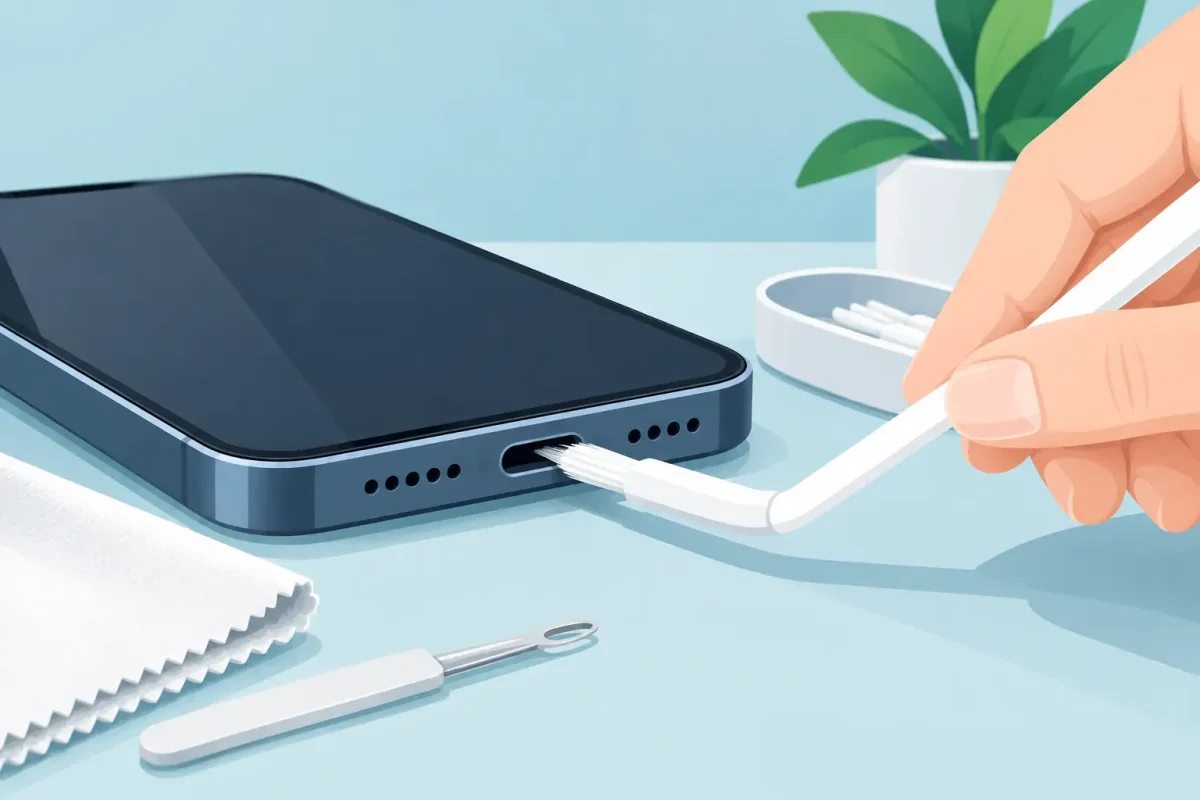
Your phone may look plugged in but still refuse to charge, disconnect when you move the cable, or charge only at a certain angle. Before assuming the battery or charger has failed, learn how to clean charging port safely. Pocket lint, dust, and small debris can pack tightly into the bottom of a port and prevent the cable from making a solid connection.
The key is patience. Charging ports contain delicate contact pins and, on many newer devices, a small center tab that can be damaged by the wrong tool. A careful cleaning can solve a simple buildup problem. Forcing the issue can turn a minor inconvenience into a charging-port repair.
Start by ruling out the obvious
Try a different charging cable and power adapter before touching the port. Cables wear out, adapters fail, and a loose connector can feel exactly like a dirty port. Test with a known-working charger that is compatible with your device.
Next, look at the port under bright light. You may see a gray or brown layer of packed lint at the bottom, especially if your phone spends time in a pocket, purse, backpack, car cupholder, or work bag. If the cable no longer clicks firmly into place or appears to sit higher than it used to, debris is a likely cause.
Do not attempt to clean a device that is unusually hot, has a swollen battery, shows signs of liquid damage, or has a visibly bent pin. Shut it down and have it inspected instead. Those symptoms can point to an electrical or battery issue that cleaning will not fix.
What you need to clean a charging port safely
You do not need an expensive cleaning kit. The safest approach uses a soft, nonconductive tool and good lighting. A wooden toothpick with a very fine point, a plastic dental pick, or a small antistatic brush can work well. A flashlight or phone light helps you see what is actually inside the port.
Avoid common shortcuts that cause damage. Never insert a paper clip, sewing needle, safety pin, knife, SIM-eject tool, or other metal object into a charging port. Metal can scratch contacts, bend pins, or create a short if the device still has power. Cotton swabs are usually too large and can leave fibers behind.
Also skip water, household cleaners, and heavy sprays of compressed air. Liquid can get behind the port, while strong air pressure can push debris farther inside. If you use canned air at all, keep the device port-facing down and use only brief, controlled bursts from a distance. Do not shake the can or turn it upside down.
How to clean charging port buildup step by step
First, power the device completely off and unplug every cable. Remove the phone case if it blocks your view or makes it hard to hold the device steady. Work over a clean table with bright lighting, not over carpet or a sink.
Hold the device so the charging port faces downward. This lets loosened debris fall out instead of settling deeper into the connector. Take your wooden or plastic pick and insert it only slightly. You are not trying to scrape every surface. Your goal is to gently lift compacted lint from the bottom and side walls of the port.
Use light, short motions. On USB-C ports, be especially careful around the thin center tongue. On Lightning ports, avoid pressing hard against the internal contact area. If you meet resistance, stop. The material may be packed lint, but it could also be part of the connector assembly.
After a few gentle passes, tap the device lightly against your palm with the port facing down. Check again with the flashlight. Repeat only as needed, then use a soft brush around the opening to clear any loose dust. Once the port looks clear, reconnect the cable and check whether it clicks in securely and begins charging normally.
A clean port should not require force. If the cable still does not seat fully, do not push harder. A damaged port, bent connector, or remaining debris may be the issue.
Keep these mistakes off your repair list
A charging port is small, but the risks are real. These are the most common mistakes to avoid:
- Digging aggressively with metal tools, which can bend pins or scrape electrical contacts.
- Pouring alcohol, water, or cleaner directly into the port, which can leave moisture where it does not belong.
- Using a vacuum nozzle directly on the port, which can create static or physically damage small internal parts.
- Repeatedly jamming in the charging cable to “clear” debris, which can wear down both the cable and port.
- Cleaning while the device is powered on or attached to a charger.
Isopropyl alcohol is useful for some electronics cleaning jobs, but it is not the first choice for ordinary port lint. Dry debris removal is safer for most at-home situations. If corrosion, sticky residue, or liquid exposure is involved, professional diagnostics are the better call.
When a dirty port is not the real problem
Cleaning helps only when buildup is blocking the connection. If your device still will not charge after a careful cleaning and a charger test, the fault may be elsewhere. A worn battery can charge slowly or stop holding power. A damaged cable can cut in and out. A charging-port assembly can become loose from impact, wear out over time, or develop corrosion after moisture exposure.
Pay attention to the pattern. If your phone charges wirelessly but not by cable, the port may be damaged or dirty. If it charges briefly and then stops, the battery, software, temperature sensor, cable, or port could be involved. If the cable works only when held at an angle, do not keep bending it into position. That usually adds stress to an already loose connection.
Tablets, laptops, game consoles, and older phones need the same careful approach, but their ports can fail for different reasons. A USB-C laptop port may have a damaged center tab. A gaming console may have a loose HDMI or power connection that looks like a charging problem. The right repair starts with a proper diagnosis rather than replacing parts based on a guess.
How often should you clean a charging port?
Most people do not need to clean a port on a schedule. Clean it when you notice a loose cable, visible debris, unreliable charging, or a connector that no longer clicks in as it should. Cleaning too often creates its own risk because every insertion of a tool can put pressure on delicate components.
Prevention helps more than frequent cleaning. Keep your device out of loose lint when possible, use a case with a port cover if your work environment is dusty, and avoid leaving the charging cable connected where it can be bumped or bent. Replace worn cables promptly, especially if the connector is loose, bent, discolored, or hot during use.
Get help before a small problem becomes a bigger one
If you can see corrosion, the port is loose, a pin looks bent, or cleaning did not restore a reliable connection, it is time for a technician to inspect it. Certified repair technicians can remove stubborn debris safely, test the charging system, and determine whether the port, battery, cable, or board is causing the problem.
For customers near Pineville or Concord, Device Doctor can diagnose charging issues across iPhone, Samsung, Google Pixel, and many other phones, tablets, laptops, and game consoles. A quick inspection can save you from replacing a device when a practical repair is all it needs.
Treat a charging problem early, especially if you rely on your device for work, school, navigation, or family communication. A careful cleaning is worth trying, but a port that keeps failing deserves a professional fix before it leaves you with a dead device at the worst possible time.