What Repair Warranties Should Cover After Service
September 14, 2026
How to Clean Charging Port Without Damage
September 16, 2026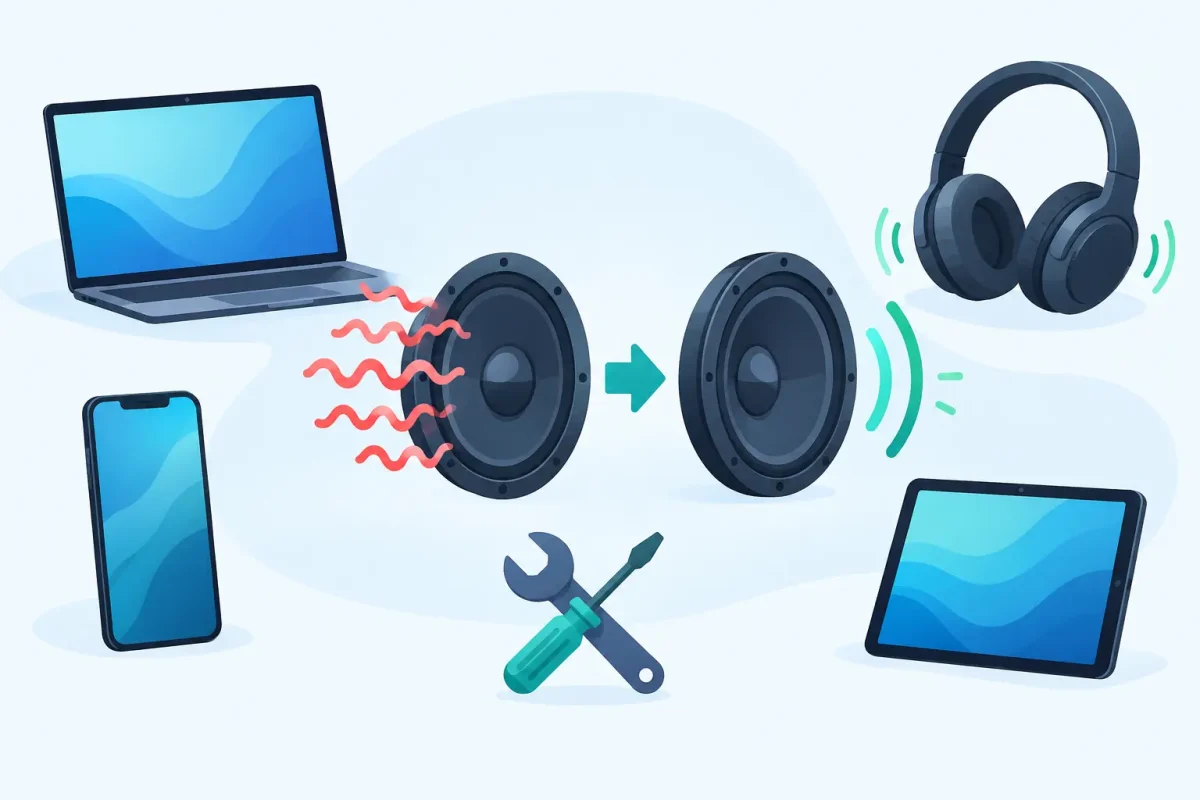
A phone speaker that suddenly sounds fuzzy can turn a quick call into a frustrating guessing game. If you need to fix speaker distortion, start by narrowing down when it happens: during every sound, only on calls, at high volume, or after the device got wet or dropped. That detail often points to the right solution.
Distortion is not always a failed speaker. A blocked grille, a loose Bluetooth connection, a bad app setting, or damaged audio hardware can all produce crackling, buzzing, muffled sound, or audio that cuts in and out. The good news is that several common causes are safe to check at home before you schedule a repair.
What Speaker Distortion Usually Sounds Like
Speaker problems do not all sound the same. Crackling or popping at normal volume can indicate debris around the speaker, moisture, or a failing speaker component. Sound that is clear at low volume but breaks up when turned up may mean the speaker is being pushed too hard, the audio file is poorly recorded, or the speaker itself is worn.
Muffled audio usually points to a blocked speaker grille, especially on a phone that spends time in a pocket, backpack, kitchen, or workshop. If the sound comes and goes after a drop, the speaker connection or another internal component may have shifted. Distortion that started right after water exposure deserves more caution, even if the device still works.
Before changing settings or cleaning anything, test more than one source. Play a known-good song, try a ringtone, make a call on speakerphone, and test a video from another app. If only one app sounds distorted, the issue may be the app, its downloaded audio, or its settings rather than your device speaker.
How to Fix Speaker Distortion at Home
Start with the simplest checks. Turn the volume down to about 50 percent, then play audio again. Very high volume can make small phone, tablet, and laptop speakers sound harsh even when nothing is broken. If audio becomes clear at a lower volume, avoid running it at maximum volume for long periods.
Next, restart the device. It sounds basic, but a restart clears temporary software conflicts that can affect audio routing, apps, and system processes. Also disconnect Bluetooth devices and turn Bluetooth off briefly. Your phone or tablet may be trying to send audio to earbuds, a car, or a speaker that is nearby but not obvious.
Check the speaker grille under bright light. Pocket lint, dust, makeup, and dried residue can restrict sound and make it seem like the speaker is damaged. Use a clean, dry, soft-bristled brush to gently loosen visible debris. Keep the device face down so particles fall away from the grille. Do not force anything into the holes, use compressed air at close range, or apply liquids directly to the speaker. Those shortcuts can push debris deeper or damage the mesh and internal components.
Remove any case, screen protector flap, magnetic accessory, or gaming grip that could cover an audio opening. This is especially worth checking after installing a new case. Some cases look properly aligned but partially block a bottom-firing speaker or microphone.
Then update the operating system and the affected apps. Audio bugs can appear after an app update, a failed download, or a software change. If distortion happens only with music streaming, delete and reinstall the app after confirming your account and downloads are backed up. On a computer, check the sound output settings and make sure the correct speakers are selected.
Fix Speaker Distortion Caused by Water or Moisture
Water changes the situation. Even a water-resistant phone can have distorted speakers after rain, a spill, sweat, or a humid environment. Moisture can sit behind the speaker mesh and temporarily muffle sound. It can also lead to corrosion later if it reaches internal connectors.
If your device got wet, power it off if possible and disconnect chargers and accessories. Wipe the outside with a soft cloth, place it in a dry, well-ventilated area, and let it air dry. Do not charge it until you are confident the charging port is dry. Do not use a hair dryer, oven, heat vent, or rice. Excess heat can damage seals, batteries, screens, and adhesives, while rice does little to remove moisture from inside the device.
A device that has persistent crackling, muffled audio, charging trouble, camera fogging, or touchscreen issues after liquid exposure needs a professional water-damage diagnostic. Waiting can turn a small repair into a larger corrosion problem.
When a Setting, Not the Speaker, Is the Problem
Not every distorted call is a speaker issue. If people say they cannot hear you clearly, your microphone may be blocked or damaged instead. Clean the microphone openings gently using the same dry, soft-bristle approach, and test a voice memo or video recording. Clear playback through headphones but poor recordings often points toward a microphone issue.
For call distortion, also check whether the problem occurs in one location or on every call. Poor cellular reception, Wi-Fi calling glitches, and a weak internet connection can make voices sound robotic, choppy, or garbled. Try a regular call, a Wi-Fi call, and a call through a different app when possible. If one method is clear, the speaker is likely not the main problem.
On laptops and desktop computers, audio enhancements can sometimes cause buzzing, echo, or unnatural sound. Check your sound settings for spatial audio, equalizer changes, communication noise suppression, or third-party audio software. Turning those features off temporarily can help identify the cause. The trade-off is that some enhancements improve voice clarity when they work correctly, so only leave them disabled if they are actually causing the issue.
Signs You Need a Speaker Repair
Home troubleshooting has limits. A repair is the better next step when distortion began after a drop, the speaker is completely silent, sound cuts out when the device moves, or the issue remains after cleaning, restarting, updating, and testing multiple audio sources.
You should also get help if you see damage around the speaker area, a swollen battery, a lifting screen, or signs of liquid exposure. A swollen battery is a safety concern, not just an audio problem. Stop using and charging the device until it can be inspected.
Modern phones and tablets pack speakers, microphones, charging components, antennas, and water-resistance seals into a very small space. Opening one without the right tools can crack the display, tear a cable, or compromise those seals. A professional diagnostic can tell you whether the problem is the speaker module, a connector, a board-level issue, or software before you pay for the wrong repair.
Prevent Distortion From Coming Back
Keep speaker grilles clear with occasional gentle dry cleaning, especially if you carry your phone in a lint-heavy pocket or use your device around dust. Use a case that leaves all speaker and microphone openings fully exposed. Avoid regular maximum-volume listening, which can strain small speakers over time and is hard on your hearing as well.
After a spill or rainy-day exposure, do not assume normal operation means everything is fine. Watch for changing sound quality, charging issues, or random restarts over the next few days. Early diagnostics are usually simpler and more affordable than waiting for corrosion to spread.
If your phone, tablet, laptop, or game console still sounds distorted after the safe checks above, bring it in for a clear diagnosis instead of living with broken audio. Device Doctor can inspect the problem, explain the repair options without hidden fees, and help get the sound you rely on back to normal.