Best Protective Cases for Phones That Fit Your Life
September 26, 2026
Why Your Laptop Will Not Charge and What to Do
September 28, 2026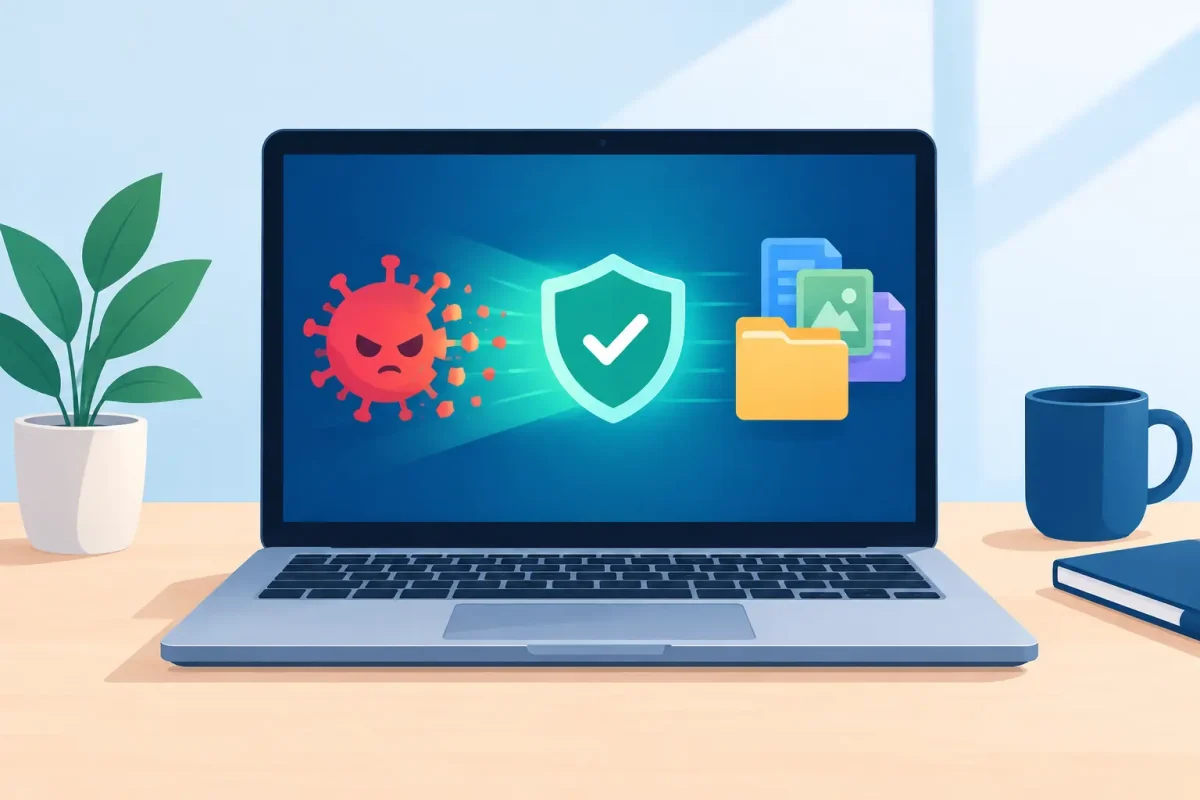
A laptop that suddenly runs hot, floods you with pop-ups, redirects your searches, or asks for payment to unlock files is more than frustrating. It may be infected. Knowing how to remove laptop malware quickly can protect your accounts, personal photos, schoolwork, and work files before the problem gets worse.
The good news is that many infections can be cleaned up without replacing your laptop or losing everything on it. The key is to slow down, avoid clicking suspicious messages, and take the right steps in the right order.
First, Disconnect Your Laptop From the Internet
If you suspect malware, turn off Wi-Fi or unplug the Ethernet cable right away. This can stop the malicious program from sending data, downloading more harmful files, or spreading through a shared network.
Do not enter passwords, banking information, or credit card details while the laptop is acting suspiciously. If you recently signed in to sensitive accounts on the affected laptop, use a different, trusted device to change those passwords. Start with your email account, because email password resets can open the door to many other accounts.
A slow computer is not always infected. A nearly full drive, too many startup programs, browser extensions, or an aging battery can also cause performance trouble. But fake security warnings, unfamiliar programs, disabled antivirus protection, ransom messages, and unexplained account activity are stronger signs that malware may be involved.
Back Up Important Files Carefully
Before removing malware, back up files you cannot afford to lose. Focus on documents, photos, videos, school projects, and other personal files. Use an external drive if possible.
Be selective. Do not back up unknown programs, random downloads, cracked software, browser extensions, or files with unfamiliar names. Malware can hide in installers and scripts, and copying everything blindly may carry the problem to your backup drive.
If ransomware has locked or encrypted your files, do not rush to pay the ransom. Payment does not guarantee that criminals will restore your data. Disconnect the laptop, save any information shown on the ransom screen, and get professional help before making major changes. The best recovery option depends on the type of ransomware and whether you have a clean backup.
How to Remove Laptop Malware Step by Step
After disconnecting the laptop and protecting your most important files, start with a structured cleanup. The exact menus vary between Windows and Mac laptops, but the approach is similar.
Start in Safe Mode When You Can
Safe Mode starts your laptop with only essential system services. That can prevent some malware from launching automatically and make it easier for security software to remove it.
On many Windows laptops, hold Shift while selecting Restart, then choose Troubleshoot, Advanced options, Startup Settings, and Restart. Select Safe Mode with Networking only if you need internet access to update a trusted security tool. Otherwise, regular Safe Mode is the safer choice.
On a Mac, the Safe Mode process depends on whether it has Apple silicon or an Intel processor. If you are unsure, do not guess through unfamiliar startup settings. You can still run built-in security checks and reputable scanning tools from a normal startup, or have a technician inspect the system.
Run a Full Security Scan
Use the security software already installed on your laptop, as long as you recognize it as legitimate. Update it first if you can do so safely, then run a full scan rather than a quick scan. A full scan takes longer, but it checks more locations where malware can hide.
On Windows, Microsoft Defender is built in and can detect many common threats. If malware has blocked or disabled your security software, a trusted offline scan may help. This scans the system before the normal Windows environment fully loads, which can make persistent threats easier to catch.
Do not install the first antivirus tool you see in a pop-up or search ad. Fake antivirus programs often create urgency, demand payment, and claim to find dozens of problems. Close the message instead. Legitimate security software will not pressure you with a countdown timer or threaten immediate arrest.
Remove Suspicious Apps and Browser Add-Ons
Check recently installed applications and remove anything you do not recognize, especially software installed around the time the trouble started. Be careful not to delete drivers or system programs simply because their names sound technical. When in doubt, look for clear signs: an unknown publisher, a strange icon, aggressive ads, or an installation date that matches the infection.
Then inspect your web browser. Remove unfamiliar extensions, reset your homepage and search engine if they changed without permission, and clear browser data. Malware often enters through a misleading browser extension, a fake update prompt, or a download disguised as a PDF, shipping notice, game cheat, or invoice.
Check Startup Items and Run Another Scan
If the issue returns after you restart, the malware may be set to launch automatically. Review startup apps and disable items you do not recognize. On Windows, this is available through Task Manager or Settings. On Macs, check Login Items in System Settings.
Restart the laptop, then run another full scan. A second scan helps confirm that the first cleanup worked. If you continue to see redirects, pop-ups, strange processes, or unauthorized security changes, stop installing more tools at random. Multiple overlapping cleanup programs can create new software conflicts without removing the real threat.
When Resetting the Laptop Makes Sense
A factory reset can be the cleanest option when malware keeps returning, the operating system is badly damaged, or you cannot verify what was installed. It removes applications and restores the system to a fresh state. However, it also requires time to reinstall programs, sign back into accounts, and restore your files.
Before resetting, make sure your backup contains only personal data you trust. After the reset, install operating system updates, security protection, and essential software before restoring files. Scan the backup drive before copying files back.
For a mild browser infection, a reset may be unnecessary. For a serious infection involving ransomware, password theft, or remote-access software, a clean reinstall is often worth the extra effort. It depends on the threat, the value of the data, and whether the laptop contains sensitive work or school information.
Protect Your Accounts After Malware Removal
Cleaning the laptop is only part of the job. If malware captured passwords, your online accounts may still be at risk.
From a clean device, change passwords for email, banking, shopping, cloud storage, social media, and school or work accounts. Use a different password for every important account, and turn on two-factor authentication wherever it is available. Review recent login activity and payment transactions for anything you do not recognize.
If the laptop belongs to your employer or school, report the incident to its IT team. Do not wait if you used the device to access company files, student portals, shared drives, or business email. Quick reporting can protect other people and may prevent a larger account compromise.
Know When to Bring Your Laptop to a Technician
Some malware problems are straightforward. Others require deeper diagnostics. Get help if your laptop will not start, files have been encrypted, security tools will not run, you see repeated remote-access warnings, or the same infection returns after cleanup.
A certified technician can check for malicious startup activity, remove unwanted software, assess operating system damage, and help determine whether a repair, data recovery effort, or clean reinstall is the best path forward. For Charlotte-area customers, Device Doctor can provide practical laptop software troubleshooting without burying you in technical jargon or surprise fees.
Keep It From Happening Again
Most infections begin with one convincing-looking click. Keep your operating system, browser, and installed software updated, especially security updates. Download apps only from trusted sources, avoid pirated software, and pause before opening unexpected attachments or text-message links.
A good backup routine is just as valuable as antivirus protection. Keep at least one copy of important files separate from your laptop, whether that is a disconnected external drive or a trusted cloud backup. If malware ever strikes again, a clean backup turns a stressful repair into a manageable inconvenience.
If something on your laptop feels wrong, trust that instinct. Disconnect it, protect your accounts, and get a clear diagnosis before the problem has a chance to spread.