How to Calibrate Tablet Battery Readings
September 21, 2026
A Corporate Laptop Repair Example That Protects Work
September 23, 2026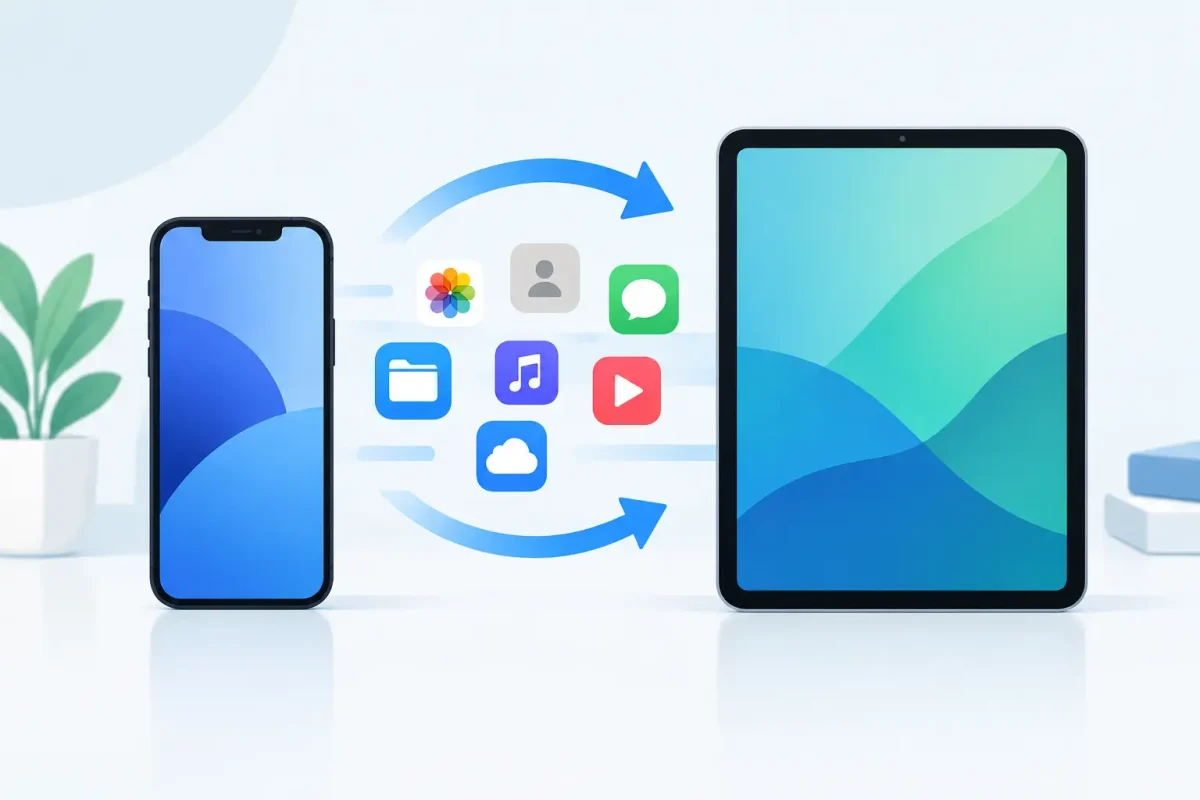
A new phone should feel exciting, not like a test of how much digital life you can afford to lose. Your photos, contacts, work apps, saved passwords, text conversations, and school files often live across several accounts and apps. This data transfer guide helps you move to a new phone or tablet with fewer surprises – and shows you when it is smarter to stop and get professional help.
Before You Start Your Data Transfer
The fastest transfers are usually the ones prepared before the new device comes out of the box. Charge both devices to at least 50 percent, connect to reliable Wi-Fi, and keep their charging cables nearby. Large photo libraries, software updates, and app downloads can take longer than expected.
Do not erase, trade in, sell, or factory reset your old device yet. Keep it available until you have checked the new device carefully. A transfer can look complete while leaving behind a few critical items, such as old messages, notes stored only on the device, authentication apps, or files saved in Downloads.
You should also make sure you know the passwords for your main accounts. That includes your Apple Account or Google Account, email, social media, banking apps, and your wireless carrier login. If two-factor authentication sends codes to your old phone, keep that phone powered on until every important app works on the new one.
Make a backup first
A direct phone-to-phone transfer is convenient, but a current backup gives you a safety net. On an iPhone or iPad, confirm that iCloud Backup has completed recently or create an encrypted backup on a computer. On Android, check that your Google backup includes contacts, call history, device settings, and app data where supported.
Backups do have limits. Many apps protect sensitive information and will require you to sign in again. Banking apps, password managers, and some messaging services may not restore their data automatically. Think of a backup as your recovery plan, not proof that every app will open exactly where you left off.
Data Transfer Guide for iPhone and iPad
Apple’s Quick Start setup is often the easiest option when moving from one compatible iPhone or iPad to another. Turn on the new device and place it near the old one. Follow the setup prompts, authenticate with your Apple Account, and choose whether to transfer directly from the old device or restore from iCloud.
A direct transfer can bring over many settings, photos, apps, messages, and accounts. It is a good choice when both devices are charged, updated, and available for the full process. If your old phone is damaged, slow, or has a weak battery, an iCloud backup may be the better route.
After setup, do not assume every app is ready. Open Messages and check your recent conversations. Confirm that Photos is still syncing, especially if your library is large. Review Notes, Contacts, Calendar, Files, and voice memos. If you use an Apple Watch, unpairing or transferring it properly matters too, since health and activity data require special handling.
If your iPhone will not complete a transfer, the issue may be low storage, unstable Wi-Fi, an outdated iOS version, or a damaged charging port or battery. Repeatedly restarting the process without checking the cause can waste hours.
Moving to a New Android Phone or Tablet
Most Android phones guide you through setup using a cable, Wi-Fi connection, or Google backup. The steps differ slightly between Samsung, Google Pixel, Motorola, OnePlus, and other brands, but the goal is the same: sign in to your Google Account and select the information you want to copy.
A wired transfer is often faster for large photo libraries and videos. Use a quality data cable, not a charge-only cable. If the phones do not recognize each other, try a different cable, remove bulky cases that interfere with the connection, and confirm both devices are unlocked.
Google backup can restore contacts, calendar entries, many apps, Wi-Fi passwords, and some settings. Photos may appear gradually through Google Photos rather than being copied directly onto the phone. That is normal, but you should confirm whether your pictures are stored in the cloud, on the old device, or on an SD card.
Samsung users may also use Smart Switch for device-to-device transfers. It can be helpful when moving between Samsung devices, but it cannot override app security rules. You may still need to sign back into financial apps, email accounts, and games with cloud saves.
Switching Between iPhone and Android
Changing operating systems requires a little more patience. Contacts, photos, calendars, and many files can move successfully, but some content does not transfer in the same way. Purchased apps may need to be downloaded again from the new app store. App-specific files, paid subscriptions, and game progress depend on the individual app and account.
Messages deserve extra attention. Moving from iPhone to Android may require turning off iMessage, while moving from Android to iPhone may require disabling RCS chat features. If you skip this step, friends may continue sending messages to your old service instead of your new phone.
WhatsApp has its own transfer requirements, which can vary by device, operating system version, and cable connection. Follow the prompts inside WhatsApp before setting up the app casually on the new phone. Starting fresh too soon can make it harder to move your chat history later.
Check These Items Before Erasing the Old Device
Your new phone may look complete after the home screen appears, but that is only the beginning. Take ten minutes to verify the parts of your digital life that would cause real trouble if they were missing.
Check that you can make and receive calls, send a text, and use mobile data. Then open your email, banking app, password manager, maps, work apps, and school accounts. Confirm your contacts include recent entries, your photo library contains recent pictures, and your notes and downloaded documents are where you expect them to be.
You should also transfer or recreate two-factor authentication access. If an authenticator app is still tied only to the old phone, move its accounts using the app’s transfer process or recovery codes. This is one of the most common reasons people get locked out after a phone upgrade.
Finally, test your camera, microphone, speakers, Bluetooth, charging, and SIM or eSIM service. If the old device is being traded in, remove it from your Apple Account or Google Account only after you know the new device is fully working.
When a Transfer Needs Hands-On Help
A cracked screen, failing battery, water damage, disabled device, or phone that will not power on can turn a simple transfer into a stressful recovery job. Sometimes the data is still accessible, but the device needs enough power, display function, or charging capability to complete the move safely.
Avoid forcing cables into a damaged charging port or repeatedly entering passcodes on a disabled device. Those actions can make recovery harder. If the phone has water damage, do not charge it until it has been inspected. Power and moisture are a bad combination.
For customers in the Charlotte area, Device Doctor can help evaluate a damaged phone, tablet, or computer and determine the practical next step. A repair that restores the screen, battery, or charging port may be all that is needed to access your data and complete the transfer.
Your old device is not ready to leave your hands until the new one has passed your real-life test: calls work, photos are there, passwords are available, and the apps you rely on open without a problem. Give yourself that check before you reset anything.