How to Stop Laptop Fan Noise Without Risk
October 13, 2026
How to Fix Phone Microphone Issues Quickly
October 15, 2026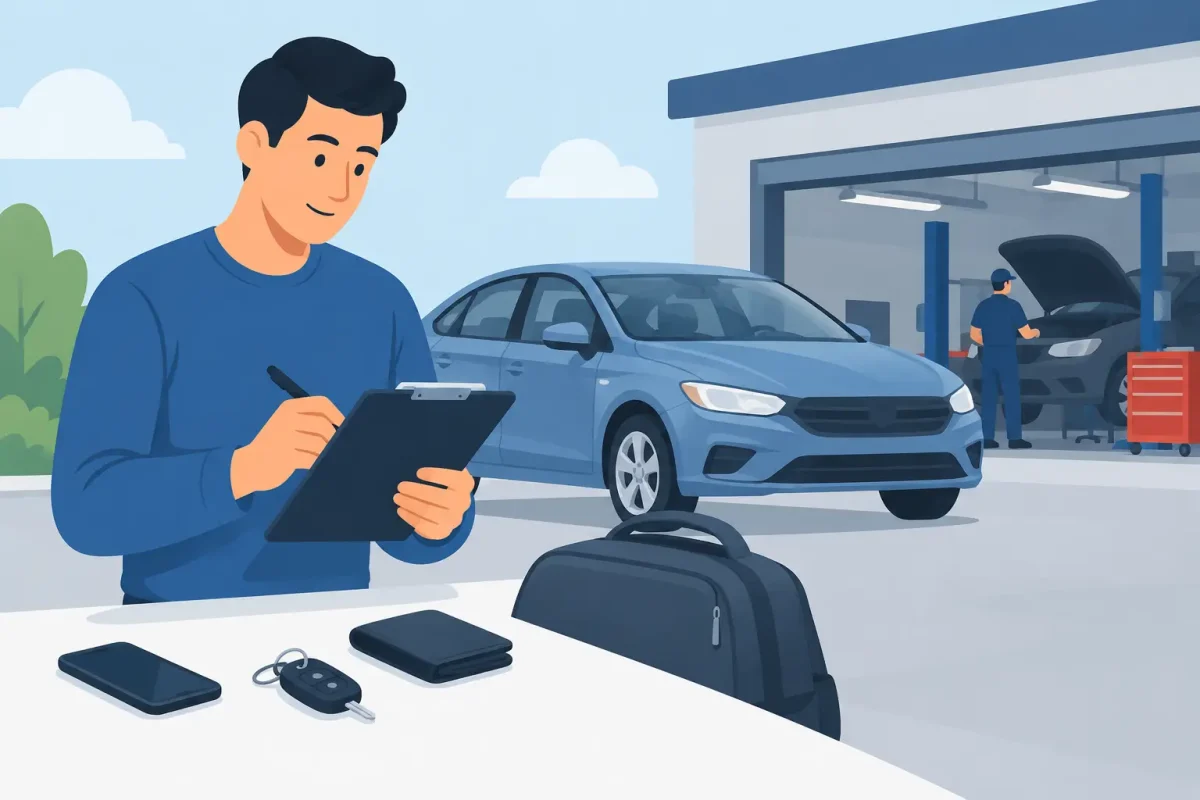
A cracked screen, dead battery, or device that will not charge can throw off your whole day. A few minutes of repair preparation before you head to the shop can protect your information, prevent avoidable delays, and help a technician get to the real problem faster.
You do not need to be a tech expert to prepare a phone, tablet, computer, or game console for service. The goal is simple: save what matters, bring what helps diagnose the issue, and know what to expect when you check in.
Repair Preparation Starts With Your Data
Your photos, contacts, school files, work documents, and saved game data matter more than the device itself. Many common repairs, including screen replacements, battery replacements, charging-port repairs, and camera repairs, do not require erasing a device. Still, any electronic device can have an unexpected failure during a repair, especially after water damage, severe impact, or a software issue.
Back up your device if it will turn on and respond. For a phone or tablet, use your preferred cloud backup service or transfer important files to a computer. For a Windows PC or Mac, save current files to cloud storage or an external drive. Gamers should confirm that game saves have synced to their console account when possible.
If the device is completely dead, do not panic. Let the technician know what data is on it and whether recovering access is a major priority. That information can affect the recommended repair path. For example, a battery replacement may be the practical first step when a phone will not power on, while a severely water-damaged device may need diagnostics before anyone can promise a result.
Save Important Login Information
Know the email address and password connected to your Apple, Google, Microsoft, or console account. You may need them after a repair if the device restarts, updates, or asks you to verify your identity.
For laptops, make sure you can access any BitLocker recovery key or FileVault recovery information. This is especially important for work and school computers. Encryption protects your files, but it can also block access if a system repair requires a restart and the recovery key is unavailable.
Do not share account passwords unless there is a clear reason to do so. A technician may need the device passcode to test functions such as the screen, camera, speakers, touch response, charging, or Face ID after a repair. Ask how that information is handled and remove it once service is complete if you prefer.
Turn Off Features That Can Delay a Repair
Activation locks are a frequent reason a repair takes longer than expected. On Apple devices, Find My can limit certain service steps. On Android devices, Factory Reset Protection and Google account verification can create similar issues after software work.
If your device is working, turn off Find My or remove the device from the related account only when requested for the repair. Do not erase your phone just to remove a lock unless the technician recommends it. Erasing can remove valuable evidence of a software problem and can complicate data recovery.
A device that belongs to an employer, school, or family plan may also have management controls. Let the repair shop know if the device is managed. A company-issued laptop, for example, may require approval from an IT department before hardware replacement or operating-system troubleshooting.
Bring the Right Accessories, Not Everything You Own
The charger and cable are often part of the diagnosis when a device will not charge. Bring them if you believe the charging issue may be related to the cable, power adapter, or console power supply. A technician can check whether the problem is in the accessory, the charging port, the battery, or the device board.
For a laptop, bring the charger. For a game console, bring the power cable and, when relevant, the controller that has the issue. If the problem happens only with a specific accessory, that accessory needs to be tested too.
Leave unnecessary cases, decorative accessories, and removable storage at home unless they are connected to the problem. Remove SIM cards and memory cards if you want to keep them with you, but tell the technician if the device relies on a card for storage or service. If you have a physical key for a laptop lock or a proprietary charging accessory, bring it along.
Describe the Problem Like a Timeline
“It’s broken” is understandable when you are frustrated, but a few details can make diagnostics much more accurate. Think about when the problem started, what happened just before it started, and whether it is getting worse.
A useful description might sound like this: “My Samsung phone started charging only at an angle two weeks ago. Yesterday it stopped charging completely. I tried two cables, and the battery icon does not appear.” That gives a technician a clear starting point and helps separate a worn port from a cable failure, battery issue, or software problem.
Mention drops, water exposure, recent updates, repair history, error messages, overheating, strange noises, and intermittent behavior. If your iPad screen flashes only while using a certain app, or your PlayStation shuts down after 20 minutes, say so. Intermittent issues can be harder to reproduce, so specific patterns are valuable.
Pictures and short videos can help when the issue does not happen every time. A video of a laptop display flickering or a photo of a liquid-damage warning can give the repair team useful evidence even if the symptom disappears at check-in.
Handle Water Damage and Swollen Batteries Differently
Some problems need immediate caution, not more troubleshooting. If a phone, tablet, laptop, or console was exposed to water, turn it off if you can and do not keep trying to charge it. Electricity and moisture can cause additional damage. Do not use a hair dryer, place the device in rice, or take it apart at home. Rice does not remove corrosion, and heat can damage internal components.
Bring the device in as soon as possible for water-damage diagnostics. Tell the technician what liquid was involved and how long ago exposure occurred. Clean water, pool water, soda, and saltwater create different risks, but every liquid event deserves prompt attention.
A swollen battery is also urgent. Signs include a screen lifting away from the frame, a bulging back cover, excessive heat, or a device that no longer sits flat. Stop using and charging it. Keep it away from heat and avoid pressing the swollen area. A battery replacement is not a repair to put off.
Know What You Want From the Repair
Before approving service, decide what matters most: the lowest immediate cost, the fastest turnaround, preserving your data, or keeping an older device useful for another year. Those priorities can lead to different recommendations.
For example, replacing a battery can be a smart value when the rest of the phone works well. But if an older phone has a cracked screen, failing battery, damaged charging port, and weak camera, putting all that money into repairs may not be the best fit. A clear diagnosis and transparent estimate let you make that call without surprises.
Ask what the repair includes, whether parts and labor are covered, and whether the quoted price may change after diagnostics. A reputable shop should explain the issue in plain language, identify any uncertainty, and get your approval before performing additional work.
What to Expect at Check-In
At check-in, the technician will usually inspect the device’s condition, confirm the reported issue, and document existing cosmetic damage. This protects both you and the repair team. Be honest about prior repairs and liquid exposure, even if the device seemed fine afterward.
Certified technicians at Device Doctor can diagnose and repair a wide range of Apple, Android, computer, and gaming-console problems, from broken screens and worn batteries to charging, camera, button, housing, and software issues. Bringing the right details helps them spend less time guessing and more time getting your device back in working order.
Before you leave, confirm the best phone number or email for updates and ask when to expect the next status check. Same-day service may be possible for many common repairs, but parts availability, device condition, and hidden damage can affect timing.
A prepared visit gives you more control over the repair process. Back up what you can, bring the accessories tied to the problem, and share the full story of what your device has been through. That small effort can turn a stressful tech problem into a clear next step.