Refurbished Versus Used Device Quality Explained
September 20, 2026
Data Transfer Guide for a New Phone or Tablet
September 22, 2026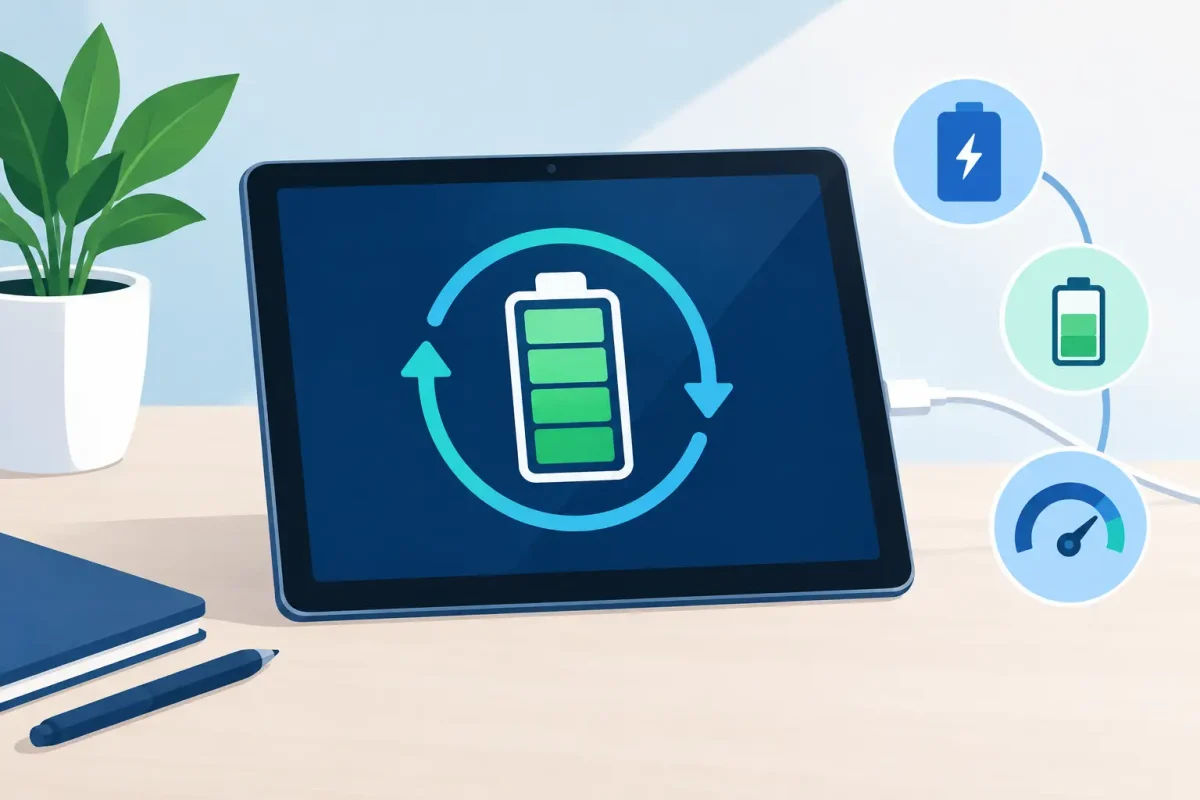
A tablet that drops from 30% to 5% in minutes is frustrating, especially when you need it for school, work, travel, or keeping the kids entertained. Learning how to calibrate tablet battery readings can sometimes correct an inaccurate percentage display. But calibration cannot make an old battery healthy again, so knowing the difference can save you time and money.
Modern iPads, Samsung Galaxy Tabs, Amazon Fire tablets, and other Android tablets use lithium-ion batteries. These batteries and their software are designed to manage charging automatically. When the percentage meter gets confused, a one-time calibration cycle may help it estimate the remaining charge more accurately. If the tablet still dies early afterward, the battery itself may be worn out or another issue may be affecting power.
What Battery Calibration Actually Does
Battery calibration is not a repair and it does not add capacity back to a battery. Instead, it gives the tablet’s power-management system a clearer picture of the battery’s usable high and low points.
You may benefit from calibration if the battery percentage jumps around, the tablet shuts down while it still shows charge remaining, or it stays at one percentage for an unusually long time and then falls quickly. These symptoms can happen after a software update, after the tablet has been stored unused for a long time, or after repeated partial charging patterns confuse the meter.
A battery that drains steadily but simply does not last as long as it once did is a different problem. Lithium-ion batteries wear down with age, heat, and charge cycles. Calibration will not reverse that wear. The practical fix may be battery replacement, particularly if your tablet is more than a few years old or no longer lasts through a normal day.
How to Calibrate Tablet Battery Readings Safely
Before starting, install any available system updates and restart the tablet. A software glitch, a stuck background app, or an outdated operating system can look like a battery problem. Also inspect the charging cable and adapter. A damaged cable or underpowered charger can make charging inconsistent and create misleading symptoms.
Then use this process once:
- Charge the tablet to 100% using a reliable charger. Once it reaches 100%, leave it connected for another 30 to 60 minutes. Avoid using the tablet heavily while it charges.
- Disconnect it and use it normally until it shuts down on its own. Streaming video, browsing, and schoolwork are fine. Do not force the battery down with heat, games running all night, or other extreme methods.
- Leave the tablet powered off for at least two to four hours. This gives the battery voltage time to settle after shutdown.
- Charge it back to 100% in one uninterrupted session. Keep the tablet off if possible, or leave it alone while charging. Use a wall charger rather than a weak computer USB port.
- When charging is complete, restart the tablet and use it as usual for a few days. Watch for more stable percentage readings and whether the unexpected shutdowns stop.
That is the full calibration process. There is no hidden menu, special app, or code that can restore a degraded tablet battery. Apps that claim to calibrate a battery generally cannot access or change the battery’s actual health.
iPad vs. Android Tablet Calibration
The basic process is similar across brands, but the settings available to you are different. Apple does not provide a manual battery calibration tool for iPads. If an iPad has inaccurate readings, performing the charge and discharge cycle above, updating iPadOS, and restarting the device are the sensible first steps.
On many Android tablets, you can check battery use in Settings to see whether one app is consuming an unusual amount of power. The exact menu names vary by manufacturer, but look for Battery, Battery Usage, or Device Care. A single app using a large share of the battery can cause fast drain even when the battery itself is fine.
Samsung tablets may offer battery protection settings that limit charging to a lower percentage to extend long-term battery life. That feature is useful for daily use, but turn it off temporarily if you are doing a one-time full charge cycle. On any tablet, remove thick cases if the device becomes warm while charging. Heat is harder on batteries than ordinary charging habits.
When You Should Not Calibrate Again
Do not make full discharge cycles part of your weekly routine. Lithium-ion batteries prefer regular, moderate charging. Running them all the way down repeatedly adds wear, even though doing it once for troubleshooting is reasonable.
For everyday use, charge whenever it is convenient and avoid leaving the tablet in a hot car, near a heater, or under blankets while charging. If you use the tablet mostly at a desk, it is also smart to unplug it once it is charged rather than keeping it hot on a charger for days at a time.
Calibration is also not the right first move if the tablet has a swollen battery, a lifted screen, unusual heat, a burning smell, or visible damage around the charging port. Stop charging and stop using the device in those cases. A swollen battery can damage the screen and should be inspected promptly.
Signs the Battery Needs Replacement Instead
After calibration, pay attention to how the tablet behaves during normal use. A battery replacement is more likely needed if it still shuts down at 20% or 30%, loses a major amount of charge while sitting idle, takes hours longer than usual to charge, or becomes excessively warm during light tasks.
Other signs point to a charging issue rather than a battery issue. If you have to hold the cable at an angle, the charging symbol appears and disappears, or the tablet only charges with one cable, the charging port, cable, or adapter may be the real problem. Replacing a battery will not fix a loose port.
Software can also be responsible. A tablet that began draining immediately after installing a new app may need that app updated, restricted, or removed. A factory reset can help in stubborn software cases, but back up photos, school files, and account information first. Resetting should be a later troubleshooting step, not the first response to every battery complaint.
Get a Clear Answer Before Replacing Parts
If a calibration cycle does not improve the readings, do not keep repeating it and hoping for a different result. A proper diagnostic can separate battery wear from a charging-port fault, software drain, or board-level issue. That matters because the right repair is faster and more affordable than replacing parts based on a guess.
Device Doctor can inspect common tablet battery and charging problems, including iPads and many Android models, and explain the repair before work begins. For Charlotte-area tablet owners, that means a straightforward path from “my tablet dies too fast” to a reliable answer.
A tablet should not make you plan your day around the nearest outlet. Calibrate once when the percentage meter seems wrong, then let the results guide your next step. If the battery still cannot hold up, a professional inspection can get your device back to being useful when you need it.