How to Fix Unresponsive Console Buttons Fast
October 12, 2026
Repair Preparation Before You Visit a Repair Shop
October 14, 2026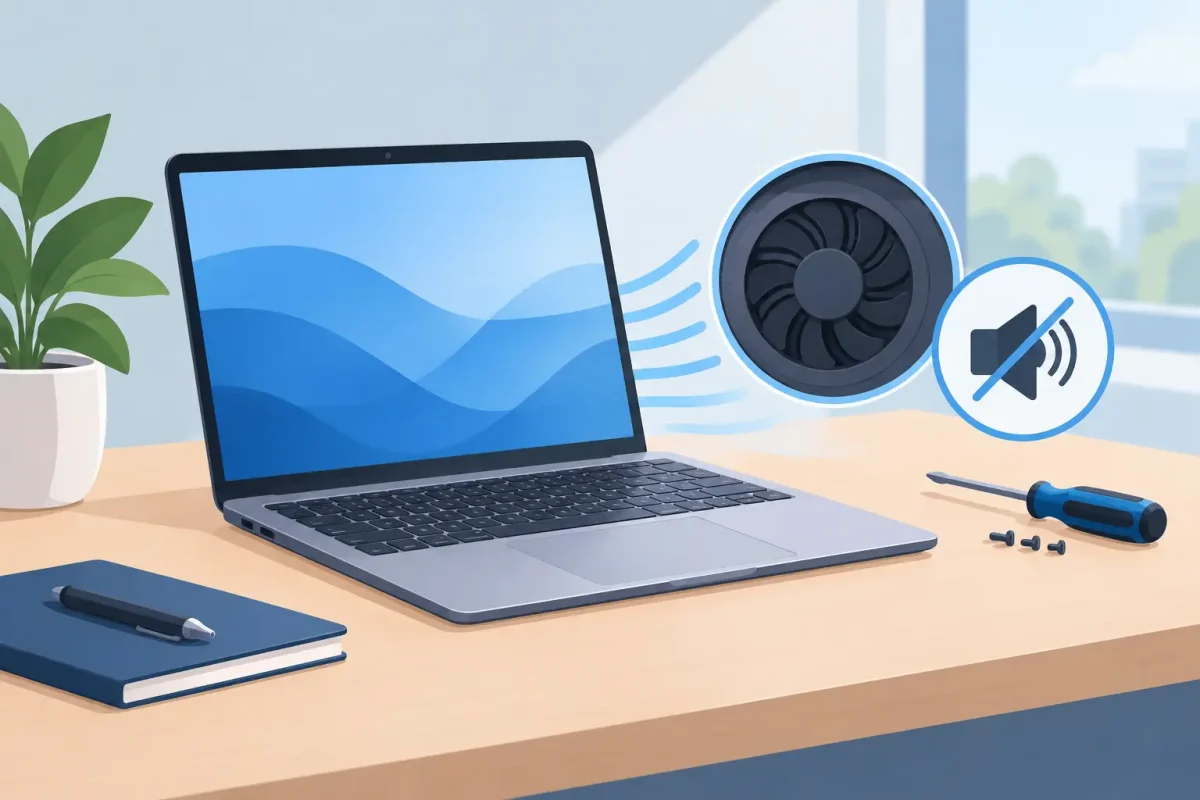
A laptop fan that suddenly sounds like a small vacuum cleaner can ruin a meeting, distract you during class, and make you worry that your computer is about to quit. To stop laptop fan noise, start by finding out why the fan is working so hard. Sometimes the answer is as simple as a blocked air vent. Other times, excessive noise points to overheating, a failing fan, or software that is putting too much demand on the system.
The goal is not to make the fan silent at all times. Fans are supposed to run when a laptop is warm. The goal is to reduce unnecessary noise and address any problem before heat damages the battery, processor, or other internal components.
Why Your Laptop Fan Is So Loud
Your laptop produces heat whenever it handles work. Video calls, browser tabs, games, streaming, photo editing, software updates, and charging all add to that workload. The fan moves cooler air through the computer to protect its components.
A brief increase in fan speed is normal after opening a demanding program or placing the laptop on a charger. Constant loud noise while doing light tasks is different. If your fan runs at full speed while you are only checking email or writing a document, the laptop may not be cooling efficiently or something may be using more processing power than it should.
Dust is one of the most common causes. It collects in vents, on the fan blades, and around the heat sink, reducing airflow. A laptop then has to spin the fan faster just to maintain a safe temperature. Pet hair, fabric fibers, and everyday dust can create this problem faster than many owners expect.
Heat buildup can also happen when the laptop sits on a bed, couch, blanket, lap, or other soft surface. Those surfaces can cover the bottom vents and trap heat inside. Even a clean laptop will get loud if it cannot pull in enough air.
Quick Ways to Stop Laptop Fan Noise
Start with the simple fixes that do not require opening the computer. Shut down the laptop, disconnect the charger, and let it cool for several minutes if the bottom feels unusually hot. Then place it on a flat, hard surface such as a desk or table. Make sure the vents around the bottom and sides have open space.
Next, close programs you are not using. On a Windows laptop, open Task Manager and look for applications using an unusually high amount of CPU, memory, or disk activity. On a Mac, use Activity Monitor to check for the same issue. A browser with dozens of tabs, a stuck update, cloud syncing, or an app that has frozen in the background can make the fan run constantly.
Restarting can help when the issue is temporary. A restart clears many background processes and gives the system a chance to install pending updates correctly. If the fan becomes quiet after a restart but grows loud again whenever you open one specific app, that app may need an update, a settings adjustment, or reinstallation.
Keep your operating system and important software updated as well. Updates can fix bugs that cause processors to work harder than necessary. Still, give the laptop time after a major update. Indexing files, syncing data, and completing installation tasks can temporarily raise temperatures and fan speed.
A cooling pad may help if you regularly use a laptop for gaming, video editing, or long work sessions. It is not a repair for a clogged or failing fan, but it can improve airflow and reduce heat under heavier workloads. Choose it as extra support, not a substitute for proper cleaning or diagnostics.
Clean the Vents Carefully
If you can see dust near the vents, careful external cleaning may make a noticeable difference. Turn the laptop off completely and unplug it. Use a soft brush to loosen debris around the vent openings, then use short, controlled bursts of compressed air from a safe distance.
Do not hold the can upside down, and do not blast air continuously into the laptop. Moisture from the can or excessive pressure can cause problems. Also avoid using a household vacuum directly on the vents. Static electricity and strong suction are not ideal around sensitive electronics.
For many laptops, the most effective cleaning requires removing the bottom cover and cleaning the fan and heat sink from inside. That process is not the same on every model. Modern MacBooks, thin Windows laptops, gaming systems, and older PCs can have different screw types, fragile cables, and components that are easy to damage. If you are not comfortable opening the device, professional cleaning is the safer and often faster choice.
When Loud Fan Noise Means a Repair Is Needed
A dirty laptop usually makes a steady rushing or whooshing sound. A failing fan often sounds different. You may hear grinding, rattling, clicking, buzzing, or a high-pitched whine. Those noises can mean the fan bearing is wearing out, a blade is rubbing against something, or debris has reached the fan housing.
Do not ignore those sounds. If a fan stops spinning properly, the laptop can overheat quickly. You may notice random shutdowns, poor performance, lag during simple tasks, hot keyboard areas, or warning messages about temperature. Repeated overheating can shorten the life of the battery and put added stress on internal components.
Thermal paste can be another factor, especially on an older laptop. This material helps transfer heat from the processor to the heat sink. Over time, it can dry out and become less effective. Replacing thermal paste can improve temperatures, but it requires careful disassembly and should be handled by a technician who knows the device model.
Battery problems can create heat as well. If the battery is swollen, the trackpad or keyboard is lifting, the case is separating, or the laptop is unusually hot while charging, stop using it and have it inspected. A swollen battery is a safety issue, not a fan-noise issue to troubleshoot at home.
Check Power Settings and Your Workload
Your laptop’s power mode affects how aggressively it uses the processor. High-performance settings can improve speed but also create more heat and fan noise. If you mostly browse, handle schoolwork, or work in documents, switching to a balanced or energy-saving mode may reduce noise without affecting your daily use.
This trade-off matters. Gamers, designers, and professionals running demanding software may need performance settings and should expect more fan activity. In that case, the best solution may be better airflow, a cooling pad, internal cleaning, or a fan repair – not reducing performance until the laptop cannot do the job.
If the fan gets loud only while gaming, check that the laptop is on a hard surface and that game graphics settings match the device’s capabilities. Lowering a few settings can reduce heat significantly. If it gets loud during video calls, close extra browser tabs and background apps before the meeting starts.
What Not to Do
Avoid trying to silence a laptop by blocking vents, disabling the fan, or changing advanced BIOS settings you do not understand. The fan is there to protect your computer. Lower noise is never worth trapping heat inside the machine.
Be cautious with online repair videos, too. A guide for one model may not apply to another, even if the laptops look nearly identical. Stripped screws, broken clips, disconnected battery cables, and damaged display cables can turn a fan cleaning into a more expensive repair.
If your computer is still under manufacturer warranty, check the coverage before opening it. Some repairs are best handled through authorized service, while an out-of-warranty laptop may be a good candidate for a local diagnostic and cleaning.
Get a Clear Answer Before Heat Causes More Damage
If cleaning the vents, restarting, and reducing your workload do not solve the problem, it is time for a diagnostic. A certified technician can check fan operation, internal dust buildup, heat sink performance, thermal paste, battery condition, and software activity instead of guessing at the cause.
For Charlotte-area laptop owners, Device Doctor can inspect loud fans and overheating issues on Macs, Windows laptops, and gaming computers. You will get a straightforward explanation of what is causing the noise and what repair makes sense, with no hidden fees.
A loud fan is often your laptop asking for better airflow or a little maintenance. Address it early, and you can get back to a quieter workspace without waiting for a small cooling issue to become a shutdown, damaged battery, or lost work.